![email-signature-anytime-logo-1.png]](https://knowledgebase.anytimebooking.co.uk/hs-fs/hubfs/email-signature-anytime-logo-1.png?height=42&name=email-signature-anytime-logo-1.png)
This helps ensure guests see the correct prices when searching for your accommodation or pitches and provides price parity between direct bookings and Pitchup.
The process has three steps:
- Select the units you want to update.
- Choose the date range for your pricing.
- Review your rates and send them to Pitchup.
Before you begin
Pitchup pricing supports standard nightly rates only. If any of your selected units use length-of-stay (LOS) pricing, where the rate varies depending on the number of nights booked, you will need to change these to standard nightly rates before you can continue or you would need to create these price types in Pitchup directly.
Step 1: Select your units
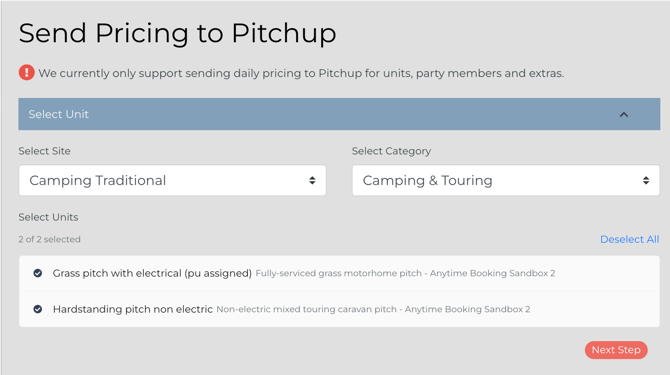
When you open the Pricing tab, the unit selection section will expand automatically.
1. Select your site (only visible if your account is site based)
If you manage multiple sites, use the first dropdown to select the site you want to update.
2. Select a category
Choose the relevant category, such as Camping or Glamping.
Only categories containing units that have been assigned to a Pitchup pitch will be available. If all your units belong to one category, it will be selected automatically.
3. Choose your parent units
The available units will be displayed in a checklist, grouped by pitch type. Each row shows the unit name and its associated Pitchup pitch type.
All units are selected by default. You can:
- Select or deselect individual units.
- Click Select All to include every parent unit.
- Click Deselect All to clear your selection.
The selection count, for example, 3 of 5 selected, shows how many units will be included.
4. Continue to the next step
Once you have selected the units you want to update, click Next step.
Step 2: Choose your date range
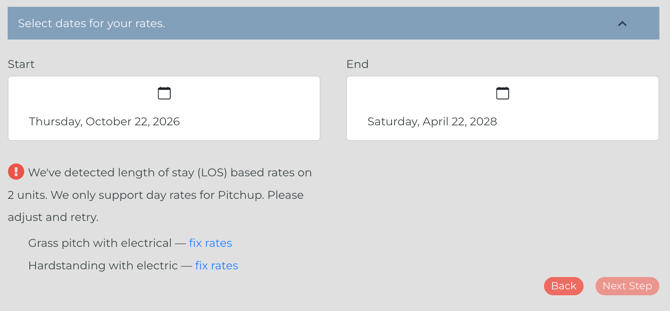
Expand the Select dates for your rates section to choose the period for which you want to send pricing to Pitchup.
1. Set the start date
Choose the first date you want your prices to apply to. This defaults to today's date.
2. Set the end date
Choose the final date of your pricing period. By default, this is set to 18 months from today.
You can adjust either date to suit your requirements.
3. Load your rates
Click Next step. Anytime Booking will retrieve the rates available for your selected units and date range.
What if you see a length-of-stay warning?
If any selected unit uses length-of-stay (LOS) pricing, a red warning will appear listing the affected units.
You won't be able to continue until these units use standard nightly rates.
Follow the link in the warning to open your rates page and make the necessary changes. Once updated, return to the Pricing tab and try again.
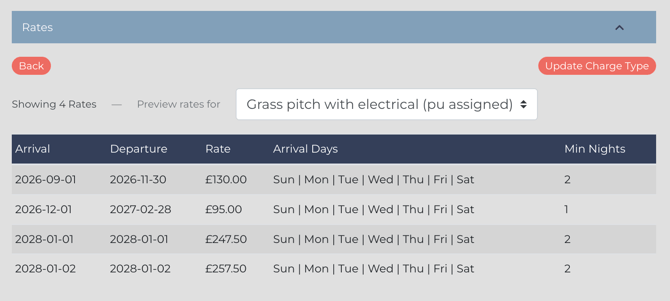
The Rates section displays the pricing held in Anytime Booking for your selected units and date range.
Rates are grouped into date periods, sometimes called rate bands. For example, a summer rate band might run from 1 July to 31 August.
Before sending your prices to Pitchup, review the information in the table.
Understanding the rates table
- Arrival: The start date of the rate period.
- Departure: The end date of the rate period.
- Rate: The nightly pitch fee for that period.
- Arrival days: The days of the week on which guests can arrive. Days shown with a line through them are unavailable for arrivals.
- Min nights: The minimum number of nights a guest must book during that period.
If your account uses separate pricing for adults, children or infants (known as party member pricing), additional columns will display these rates.
Reviewing percentage-based party member pricing
Some accounts calculate adult, child and infant prices as a percentage of the main pitch rate rather than as fixed amounts.
If this applies to your account, dropdowns will appear above the rates table. Use these to set or adjust the percentage for each party member type before sending your prices to Pitchup.
Checking rates for individual units
If you selected multiple units, use the Preview rates for dropdown above the table to view each unit's rates individually.
Check that the date periods, prices, arrival days and minimum stay requirements are correct before continuing.
Once you have checked your pricing, you can send it to Pitchup.
1. Start the process
At the top of the Rates section, click the relevant button:
- Create charge type if you are sending pricing for the first time.
- Update charge type if pricing has already been sent for that unit.
2. Review the confirmation
A confirmation window will appear summarising the information you are about to send, including:
- Unit name.
- Pitchup pitch type.
- Date range.
- Number of rates being sent.
Check these details carefully before proceeding.
3. Confirm and send
Click Create charge type or Update charge type in the confirmation window.
A progress indicator and status messages will appear while the pricing is being sent. This usually takes a few seconds.
4. Check the confirmation message
A green success message will confirm that the pricing has been sent successfully.
[Screenshots: The confirmation window showing the pricing summary, followed by the green success message.]
Managing existing charge typesThe Manage charge types panel displays pricing that has already been sent to Pitchup for the selected unit.
On a desktop, this panel appears to the right of the Pricing tab. On a mobile device, it appears below the unit selector.
Each entry shows the charge type name, its active or inactive status, and whether it is live on Pitchup.
We strongly advise to head to your Pitchup account and check the pricing and correct charge type is in place
Updating your Pitchup pricing
Changes to your rates in Anytime Booking are not sent to Pitchup automatically.
Whenever you change your nightly rates, return to the Pricing tab and repeat the three steps:
- Select your units.
- Choose the date range.
- Review and send your rates.
If pricing has already been created, the system will offer you the option to Update charge type rather than create a new one.
We recommend reviewing and updating your Pitchup pricing whenever you make changes to your rates, so the prices displayed to guests remain accurate.