
The Copy rates function allows you to quickly copy existing rates from one year to another or from one unit to another.
This is particularly useful when setting up rates for a new year, as you can copy your existing rate structure and then make any necessary adjustments.
Open Copy rates
From the Rates tab, select Copy rates.
If you already have a unit selected
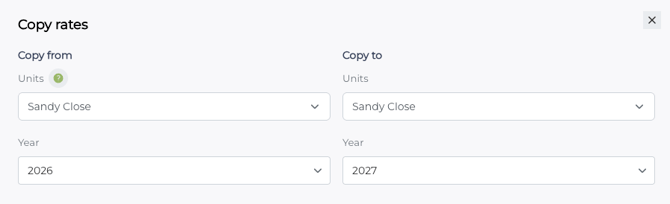
If you open Copy rates while viewing a specific unit, the system will automatically select:
- The current unit as the Copy from unit.
- The following year as the Copy to year.
For example, if you are viewing a unit called Sandy Close for 2026, the system will automatically set:
Copy from: Sandy Close – 2026
Copy to: Sandy Close – 2027
You can change these selections if required.
If no unit is selected
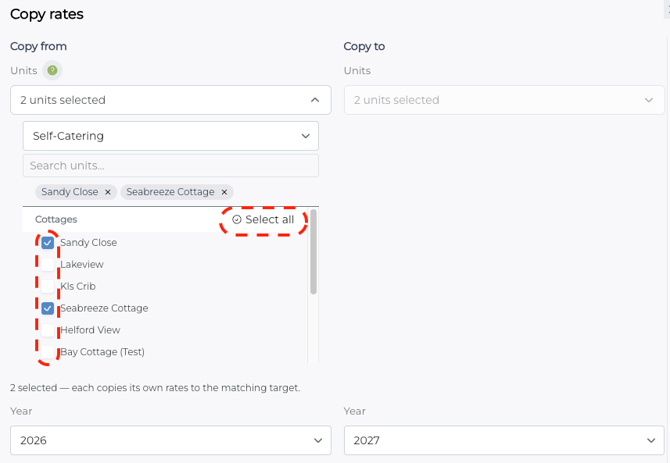
The blank Copy rates function gives you flexibility over both the source and destination. You can use it to:
- Copy rates from one unit to another unit – for example, copy the rates from Lakeview to Riverside.
- Copy one unit from one year to another – for example, copy Sanyd Close from 2026 to 2027.
- Copy selected units from one year to another – choose several units and copy their rates from 2026 to 2027.
- Copy an entire category of units from one year to another – for example, copy all units within a category from 2026 to 2027.
This means you don't need to copy rates individually when you are setting up a new year for multiple units.
Review the date modification
The Date modification section shows how the existing rate periods will be moved from the source year into the destination year.
For example:
2026:
1 January 2026 – 30 June 2026
2027:
31 December 2026 – 29 June 2027
The system automatically adjusts the dates when moving the rates into the new year and will inform you of any created overlaps.
Review the dates carefully to make sure they are appropriate for the new rate period.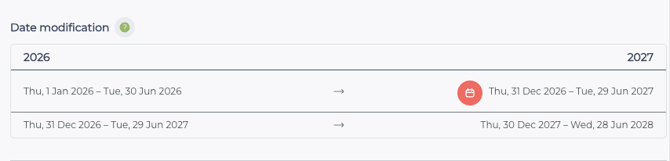
Rate adjustment
One of the useful features of Copy rates is the ability to automatically adjust your pricing as part of the copy process.
Under Rate adjustment, you can choose between:
Percentage adjustment
Select % and enter the percentage you want to increase or decrease the rates by.
For example, entering 10% will increase the copied rates by 10%. Using the up and down arrows, if you set the percentage to -10%, it will decrease the copied rates by 10%."
Fixed monetary adjustment
Select £ and enter the amount you want to add to or remove from the existing rates.
For example, entering £5 will increase the copied rates by £5.
No adjustment
Leave the adjustment blank or at zero if you want to copy the rates without changing the prices.
Round your rates
When applying a rate adjustment, you can choose how the resulting prices are rounded.
- Round up – rounds the adjusted rate up to the nearest £1.
- Exact – keeps the calculated rate without rounding.
For example, if a percentage increase results in a rate of £103.50, using Round up will make the new rate £104.
This can be particularly useful when applying a percentage increase across a large number of rates and you want your pricing to remain in whole pounds.

Set visibility
Under Visibility, you can choose where the copied rates will be available:
- Online – makes the rates available for online bookings.
- Admin – makes the rates available within the administration system.
You can deselect either option if the copied rates should not be available in that area.
Copy the rates
Once you have checked the source and destination units and years, reviewed the date changes and selected any rate adjustment required, click Copy rates.
The rates will then be copied to the selected unit/s and year.