
You can set the date range, arrival and departure days, pricing, minimum stay requirements, Length of Stay pricing and where the rate will be visible.
1. Open Add rate
From the Rates tab, select + Add rate.
The Add rate window will open for the unit you have selected.

2. Set the date range
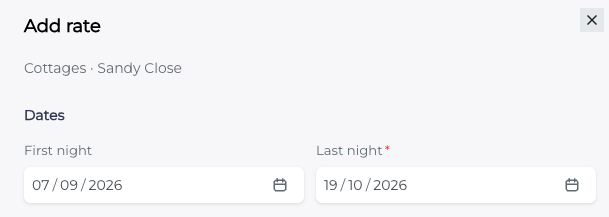
Enter the First night and Last night for the new rate band.
The First night will automatically look for the next available date based on your existing rate bands, helping you avoid gaps in your pricing.
Check that the Last night is set to the date you want the rate band to finish.
3. Select arrival and departure days
The Arrival / Departure days section allows you to control which days guests can arrive and depart.
All days are selected by default.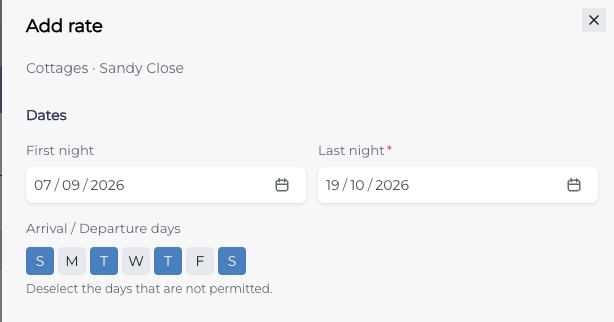
Deselect any days that are not permitted for this rate band.
For example, if guests cannot arrive or depart on a Monday deselect M.
4. Add your primary rate
Under Rate, select how you want to enter your primary pricing.
You can choose between:
- Nightly rate – enter the price charged per night.
- Total price for min stay – enter the total price for the minimum stay.
Enter your chosen price and then specify the Minimum stay in nights.
For example:
- Nightly rate: £100
- Minimum stay: 1 night
Or, if using the total price option:
- Total price for minimum stay: £300
- Minimum stay: 3 nights
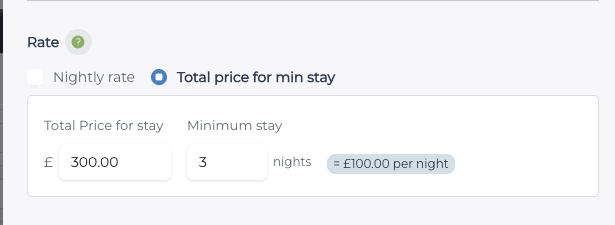
Please note, rates are always stored in the system as nightly amounts. These options allow you to either enter the nightly rate and minimum stay (and we will show the cost of a minimum stay), or enter the total price you wish to charge for the minimum stay (and we will work out the nightly rate for you)
5. Add Length of Stay pricing
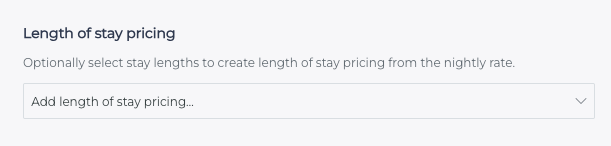
If you want to offer different pricing based on the guest's Length of Stay (LOS), use the Add length of stay pricing... dropdown.
Select the required number of nights.
This will create additional secondary rate bands underneath the primary rate.
You can then enter the pricing for each Length of Stay option. The secondary bands allow you to set the price either:
- As a percentage off the primary (min nights) rate, or
- As a nightly figure.
This gives you greater flexibility when creating pricing for different lengths of stay.
6. Set the rate visibility and any notes
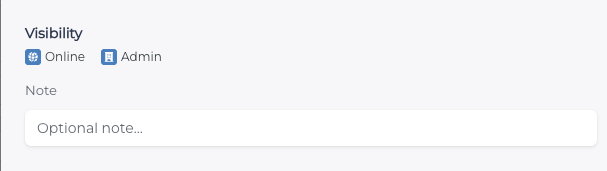
Under Visibility, you can control where the rate is available:
- Online – the rate can be used for online bookings.
- Admin – the rate can be used when making bookings within the administration system.
Both options are selected by default.
If the rate should not be available in one of these areas, deselect the relevant option.
Add any relevant note that you require, or this can be left blank.
7. Add the rate
Once you have entered all of the required information, check that the dates, arrival/departure days, pricing, minimum stay, LOS options and visibility are correct.
Click Add rate to create the new rate band.
Add or remove Length of Stay pricing when editing
You don't need to decide whether you will use Length of Stay (LOS) pricing when initially creating your yearly rate bands.
If you later decide that LOS pricing is required, you can easily add it by using the Edit function next to the rate band's delete/bin icon.
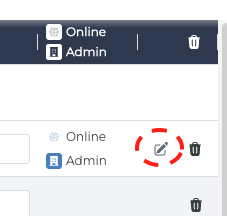
When editing an existing rate band, you can:
- Add Length of Stay options to an existing rate.
- Remove Length of Stay options that are no longer required.
- Update the pricing for your existing LOS bands.
This makes managing LOS pricing much easier, particularly when setting up rates for a new year. You can create your standard rate bands first and only add LOS pricing when you know it is required.