---
title: Accessing the rates area LITE
description: A Dashboard to view rate issues and publish new rates
---
[Skip to content](https://knowledgebase.anytimebooking.co.uk/anytime-lite/accessing-the-rates-area-lite#main-content)
[Contact Support](https://knowledgebase.anytimebooking.co.uk/anytime-lite/kb-tickets/new?hsLang=en-gb)
[](https://knowledgebase.anytimebooking.co.uk/anytime-lite?hsLang=en-gb)
Open main navigation
Close main navigation
- [Contact Support](https://knowledgebase.anytimebooking.co.uk/anytime-lite/kb-tickets/new)
- [Contact Support](https://knowledgebase.anytimebooking.co.uk/anytime-lite/kb-tickets/new)
[Contact Support](https://knowledgebase.anytimebooking.co.uk/anytime-lite/kb-tickets/new?hsLang=en-gb)
Welcome to the Anytime LITE knowledge base
- There are no suggestions because the search field is empty.
1. [Anytime LITE Knowledge Base](https://knowledgebase.anytimebooking.co.uk/anytime-lite?hsLang=en-gb)
2. [User Guides & Videos](https://knowledgebase.anytimebooking.co.uk/anytime-lite/user-guides-videos?hsLang=en-gb)
# Accessing the rates area LITE
## The new Rates area can be accessed from the left-hand navigation menu.
### Access the Rates area
From the left-hand menu, click **Rates**.
The Rates area will open on the **Dashboard** tab by default.
### Dashboard overview
At the top of the Dashboard, you will see three blue boxes, with each box representing a different year.
These boxes provide an overview of any rate issues affecting your listings:
- **Units without rates** – shows the number of units that do not have rates set up.
- **Overlapping rates** – shows the number of units where rate periods overlap.
To view the affected units, click the **number displayed to the right** of the relevant issue. This will open a list of the units affected so you can review and resolve the issue.
### 
### Recent changes
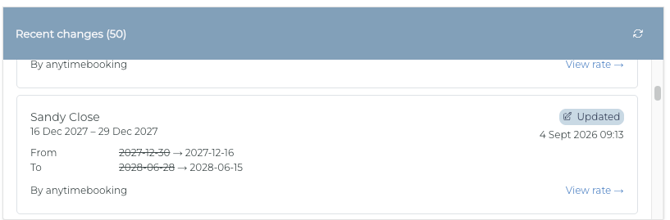
Below the issue summary, the **Recent changes** section displays the latest changes made to your rates.
For each change, you can see information such as:
- The unit or rate that was changed
- The date range affected
- Arrival day changes
- Who made the change
- When the change was made
Click **View rate** to open the relevant rate and review the full details.
###  Ready to Publish
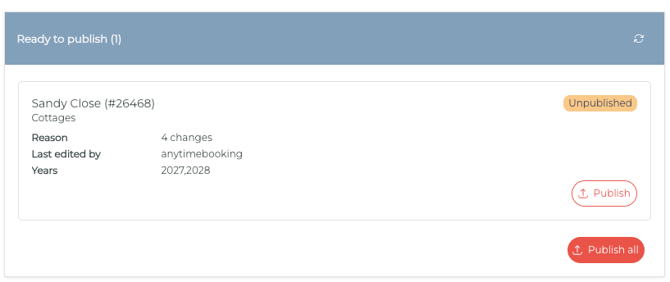
On the bottom right of the Dashboard, you will find the **Ready to publish** section.
This section lists any units where rate changes have been made but have **not yet been published**.
From here, you can:
- **Publish individual units** by selecting the publish option next to the relevant unit.
- **Publish all listings** using the **Publish All** button.
This makes it easier to see which rate changes are waiting to be published and quickly make them live.
**Tip:** Use the **refresh icon** in each section to refresh the information and ensure you are viewing the latest updates.
- [User Guides & Videos](https://knowledgebase.anytimebooking.co.uk/anytime-lite/user-guides-videos?hsLang=en-gb)
- [Manage Your Settings](https://knowledgebase.anytimebooking.co.uk/anytime-lite/manage-your-settings?hsLang=en-gb)
- [Connections](https://knowledgebase.anytimebooking.co.uk/anytime-lite/connections?hsLang=en-gb#main-content)
- [Airbnb](https://knowledgebase.anytimebooking.co.uk/anytime-lite/connections?hsLang=en-gb#airbnb)
- [Pricing in LITE](https://knowledgebase.anytimebooking.co.uk/anytime-lite/pricing-in-lite?hsLang=en-gb)
[](https://www.anytimebooking.co.uk)
The base of all knowledge
[mailto:support@anytimebooking.co.uk](mailto:support@anytimebooking.co.uk)
Copyright © 2026, Anytime Booking